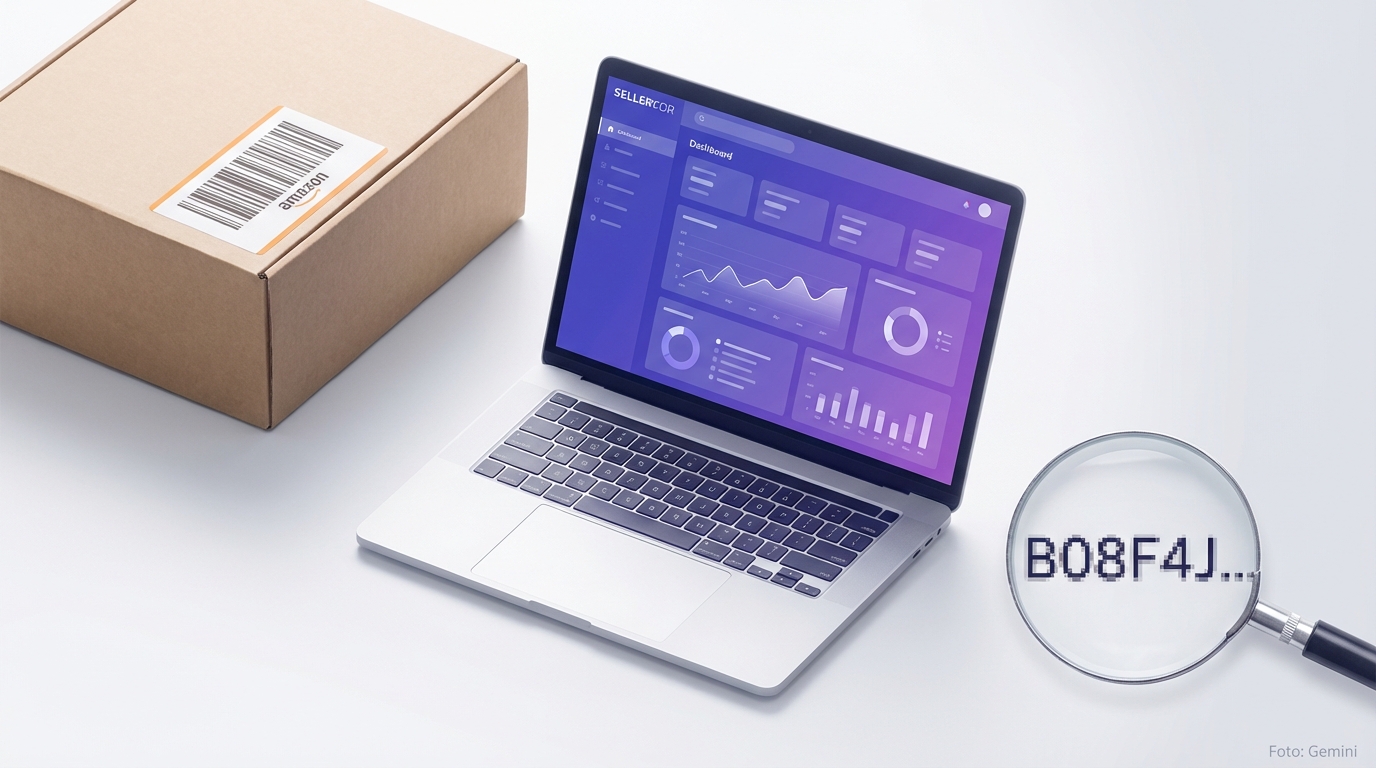
What Is an ASIN? Definition and Structure
ASIN stands for Amazon Standard Identification Number. It is a 10-character alphanumeric string that Amazon uses internally to uniquely identify every product in its own catalogue. The ASIN is the foundation of the entire Amazon ecosystem: listings, search ranking, PPC campaigns, reports — everything revolves around this identifier.
The string almost always begins with the letters 'B0', followed by eight further characters made up of capital letters and digits. A typical example: B0CXYZ1234. For books, Amazon frequently uses the ISBN directly as the ASIN, which is why these begin with digits. Important: each product receives its own ASIN per marketplace. A product on amazon.co.uk therefore has a different ASIN from the same product on amazon.de or amazon.com.
- 10 characters, alphanumeric (letters + digits)
- Usually begins with 'B0' (exception: books/ISBN)
- A separate ASIN per Amazon marketplace
- Assigned automatically by Amazon — you cannot choose it yourself
- Applies exclusively within the Amazon ecosystem, not on other platforms
Where Do You Find a Product's ASIN?
The quickest method: look at the product page URL. Amazon builds its product URLs to a fixed pattern. Between '/dp/' and the next forward slash, you will always find the ASIN. Example: amazon.co.uk/dp/B0CXYZ1234/ — here B0CXYZ1234 is the ASIN. This works on every Amazon marketplace without any additional tool.
Alternatively, scroll down the product page to the 'Product Information' or 'Additional Technical Details' section. Amazon lists the ASIN there explicitly. In Seller Central, you can find the ASIN for your own products under Inventory → Manage All Listings — in the relevant column, which you can enable as needed.
- In the URL: amazon.co.uk/dp/**ASIN**/
- On the product detail page in the 'Product Information' section
- In Seller Central under 'Manage All Listings'
- In inventory reports and Business Reports from Amazon
- Via the Amazon SP-API for automated queries

Parent ASIN and Child ASIN: Understanding Variations Correctly
As soon as a product is offered in multiple variations — such as different colours, sizes, or styles — Amazon works with a parent-child structure. The parent ASIN is the overarching container, which is not purchasable in itself. The individual variations each receive their own child ASINs, through which customers actually buy and leave reviews.
What makes this particularly useful: reviews are aggregated at parent level. All child ASINs share the reviews of the parent listing. This is a considerable advantage over separate listings, because social proof is consolidated. If you set up variations incorrectly, or Amazon inadvertently merges them, this can lead to visibility problems and conversion loss. Check regularly that your variation structure is correctly reflected.
- Parent ASIN: overarching unit, not directly purchasable
- Child ASINs: purchasable variations (colour, size, quantity, etc.)
- Reviews are consolidated at parent level
- Incorrect variation merging can damage rankings
- Variations must be thematically related — Amazon actively checks this
Creating a New ASIN: What You Need to Know
If you are adding a completely new product to the Amazon catalogue that does not yet have an ASIN, you create a new listing via Seller Central. For this you absolutely need a valid EAN (European Article Number) or another GS1-certified product identifier — unless you have an exemption such as a GTIN Exemption or protection under the Amazon Brand Registry. After creation, Amazon automatically assigns a new ASIN.
If the product already exists in the catalogue — for example because another seller is already selling it — you must attach yourself to the existing listing. You are not creating a new listing, but a new offer on the existing ASIN. This is the standard case for resellers and traders. Private label sellers, on the other hand, generally create their own new ASINs because they sell exclusive products.
- New product → EAN/GTIN required → Amazon assigns ASIN automatically
- Existing product → attach offer to existing ASIN
- Brand Registry allows GTIN Exemptions for own brands
- Incorrect EAN assignment leads to listing errors and suppression
- Only ever create one ASIN per product per marketplace

ASIN vs. FNSKU vs. EAN: The Most Important Product Identifiers Compared
As a seller, you encounter several product identifiers simultaneously — this often causes confusion. The ASIN identifies a product in the Amazon catalogue. The EAN (or UPC in North America) is the globally valid trade identifier that you purchase from GS1 and need for creating new listings. The FNSKU (Fulfilment Network SKU) is an Amazon-internal identifier that applies specifically to FBA stock units.
If you use FBA, Amazon's warehouse staff apply an FNSKU barcode to every unit. This barcode ensures that your product in the warehouse is assigned to your account and not mixed with similar products from other sellers — this is known as commingling. The SKU, on the other hand, is your own internal identifier in Seller Central. You assign it yourself and it is only visible to you, not to customers.
- ASIN: Amazon's internal product identifier in the catalogue
- EAN/UPC: international trade identifier (GS1), required for new listings
- FNSKU: FBA-specific warehouse identifier, assigned by Amazon
- SKU: your own internal identifier, visible only in your account
- ISBN: used directly as ASIN for books
Using ASINs Strategically: PPC, Research and Listing Optimisation
In Amazon Advertising, you can target competitor ASINs directly. In the Sponsored Products campaign type, there is a 'Product Targeting' option for exactly this purpose. You enter the ASIN of a competing product and your ad appears on its product page. This is particularly effective when you have a clearly superior product or the competitor currently has low stock levels — the conversion rate on your ad is then significantly higher.
For product research, the ASIN is equally central. Through it, you can retrieve targeted data for a specific product: price history, ranking development, review growth, and estimated sales figures. This allows you to identify which products in your category are genuinely performing — and which only look good on the surface. In Seller Central, Business Reports at ASIN level provide granular conversion data that you can use directly for listing optimisation.
- Sponsored Products: target competitor ASINs directly
- Sponsored Display: ASIN-based retargeting on and off Amazon
- Business Reports: evaluate conversion rate, sessions and units per ASIN
- ASIN-based price monitoring for dynamic pricing strategies
- Track keyword rankings per ASIN and improve listings in a targeted manner

Common ASIN Problems and How to Resolve Them
Listing hijacking is the most well-known ASIN problem: another seller attaches themselves to your ASIN and sells there — sometimes counterfeits or inferior goods under your listing. This damages your reviews and brand value without you initially noticing. The Amazon Brand Registry provides protection. With a registered trademark, you can report ASIN violations significantly faster and usually have hijackers removed within a matter of days.
Suppressed listings occur when your listing violates Amazon's policies or mandatory information is missing — such as a main image without a white background, missing bullet points, or an invalid category assignment. Suppressed ASINs do not appear in search and generate no traffic. Check the status of all your ASINs regularly in Seller Central under 'Manage All Listings'. Incorrect ASIN merging is another problem: Amazon sometimes groups products together into one listing by mistake, leading to incorrect reviews and incorrect product descriptions. In this case, open a case with Seller Central Support with a clear explanation and request separation of the listings.
- Listing hijacking: other sellers take over your ASIN → activate Brand Registry
- Suppressed listings: listing errors → check inventory weekly
- ASIN merging: Amazon incorrectly combines products → open a support case
- Stranded inventory: ASIN in warehouse without active listing → fix immediately, otherwise storage fees apply
- Category changes: Amazon moves products to incorrect categories → submit a category request
Frequently Asked Questions
What does ASIN mean on Amazon?
ASIN stands for Amazon Standard Identification Number. It is a 10-character alphanumeric identifier that Amazon uses internally to uniquely identify every product in its catalogue. Each ASIN is unique per marketplace and is assigned automatically by Amazon.
Can I choose or set my own ASIN?
No. Amazon assigns ASINs automatically when a new listing is created. You can neither request a specific ASIN nor change the assigned string afterwards.
Is the ASIN the same across all Amazon marketplaces?
No. Each marketplace has its own ASIN system. A product on amazon.co.uk generally has a different ASIN from the same product on amazon.com or amazon.de. There are exceptions with manually synchronised catalogue entries, but this is not standard.
What is the difference between an ASIN and an FNSKU?
The ASIN identifies the product in the Amazon catalogue. The FNSKU (Fulfilment Network SKU) is an additional identifier specifically for FBA units in the warehouse. It ensures that your product remains assigned to your account and is not mixed with other sellers' stock.
How do I find the ASIN of a product quickly?
Look at the URL of the Amazon product page. After '/dp/' the 10-character ASIN follows directly. Alternatively, you can find it on the product page in the 'Product Information' section or in Seller Central under 'Manage All Listings'.
What is a parent ASIN?
A parent ASIN is the overarching unit for products with variations (e.g. different colours or sizes). It is not purchasable itself, but bundles all child ASINs and aggregates their reviews. Customers always purchase via a child ASIN.
Can an ASIN be deleted?
ASINs are generally not deleted entirely, but they can be set to inactive, suppressed, or removed from the catalogue. If you remove a product from your range, you can close the listing. The ASIN remains in Amazon's system.
Start free with Sellercore
Manage all your ASINs, track rankings, and analyse competitors centrally in one tool. Try Sellercore free today.
Sign up now